

Create and manage vocabularies
how-to Steps to accomplish one task
On this page
- Vocabulary overview
- Vocabulary details page
- Create a vocabulary
- Manage a vocabulary
- Delete vocabularies
In this article, you will learn how to create and manage vocabularies to enhance the efficiency and organization of metadata in CluedIn.
Vocabulary overview
A vocabulary is a framework that defines how metadata is stored and organized within the system. The primary purpose of vocabulary is to hold vocabulary keys.
A well-defined vocabulary is essential for maintaining data consistency, accuracy, and usability across an organization. By providing a standardized framework, a vocabulary contributes to effective data integration, improved decision making, and streamlined operations. It ensures that all stakeholders are working with consistent and reliable master data definitions and structures.
In CluedIn, all vocabularies are stored in Management > Data Catalog > View All Vocabularies.
Vocabulary details page
On the vocabulary details page, you can view relevant information about a vocabulary and take other actions to manage a vocabulary.
Configuration
This tab contains general information about the vocabulary, including:
-
Vocabulary name – a user-friendly identifier of the vocabulary.
-
Primary business domain – a business domain linked with the vocabulary.
-
Source – a source system that indicates the origin of data within the vocabulary.
-
Key prefix – a namespace that is added before vocabulary key names for consistent naming, efficient searching, and data filtering.
-
Description – a summary that explains the purpose of the vocabulary. You can add rich formatting to the description, such as bolding, underlining, or italicizing text.
You can edit any aspect of the vocabulary configuration, with the exception of the key prefix.
Usage
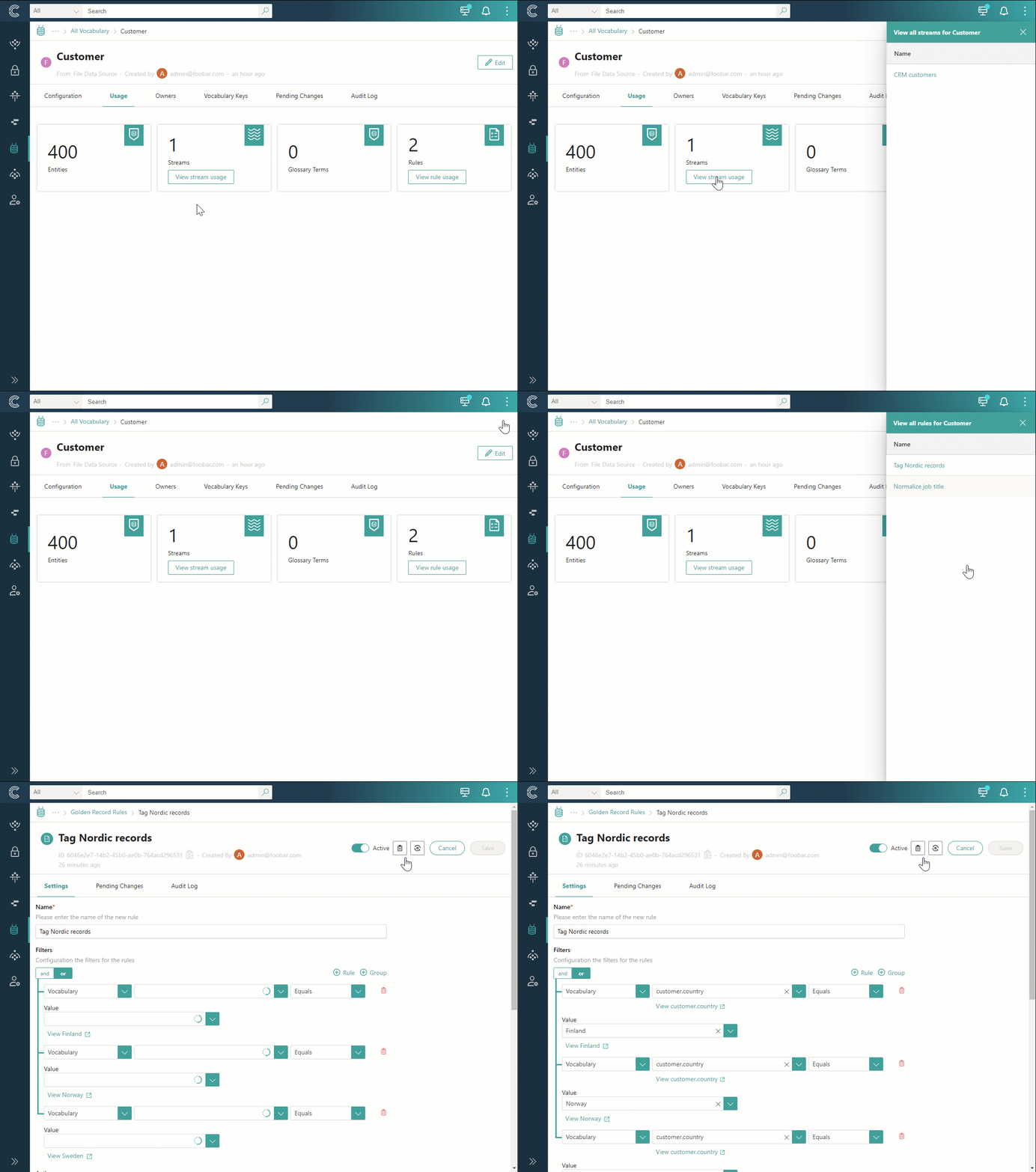
This tab provides the global view of vocabulary usage in the system: number of golden records, streams, glossary terms, and rules where the vocabulary is used. By selecting the respective button, you can access a list of streams, glossary terms, and rules, along with links to the corresponding elements in the system.
Owners
This tab contains a list of users who can manage the vocabulary (Vocabulary Owners). You can add or remove vocabulary owners if necessary.
Vocabulary keys
This tab contains groups of vocabulary keys associated with the vocabulary. You can search for specific keys or use data type and classification filters to explore the available metadata within the vocabulary.
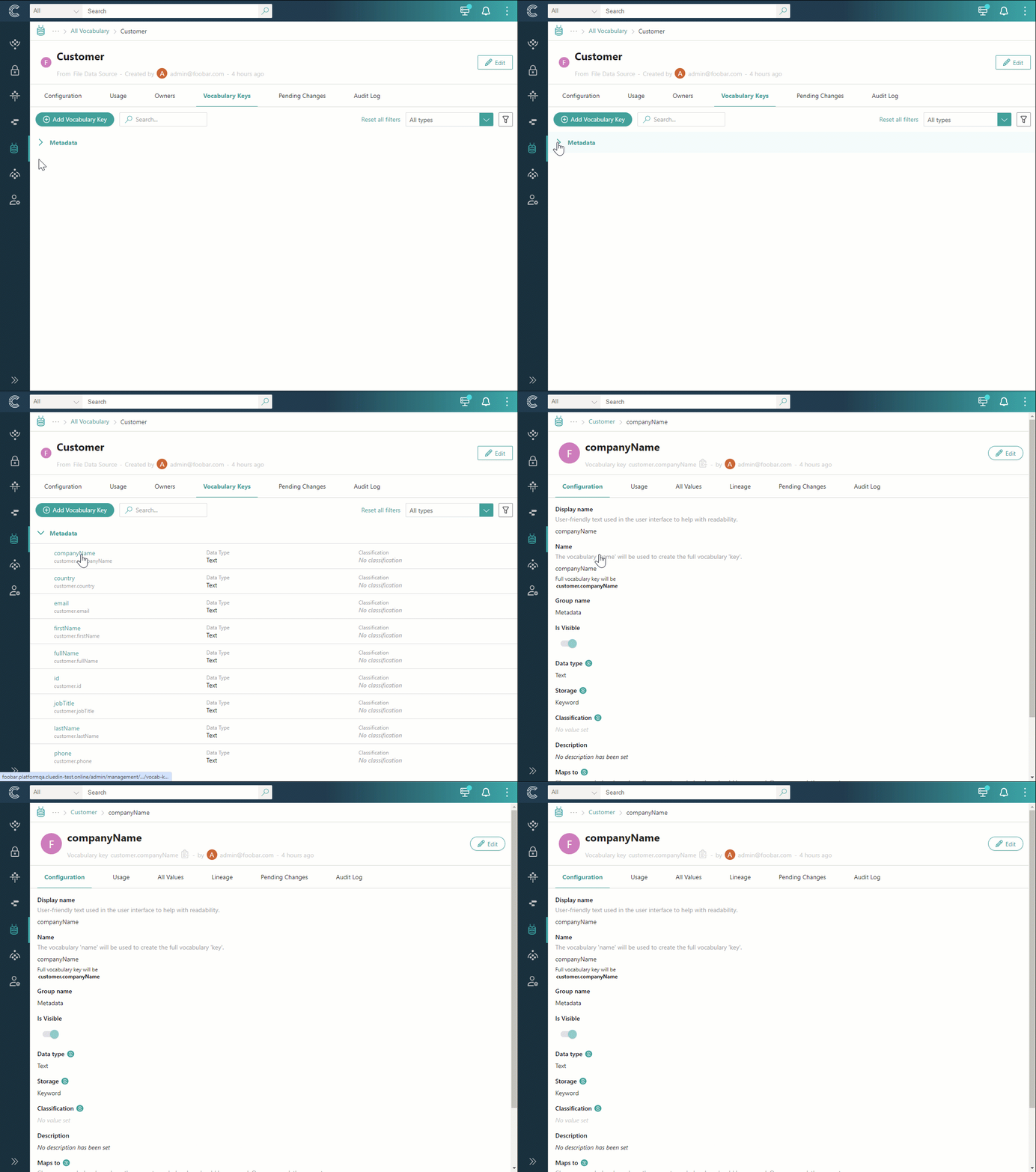
For information on how to manage vocabulary keys, see Vocabulary keys.
Pending changes
This tab contains tasks for reviewing changes to the vocabulary submitted by users who are not Vocabulary Owners.
Audit log
This tab contains a detailed history of changes to the vocabulary, such as:
- Create a vocabulary
- Added user to owners
- Create a vocabulary key
- Delete a vocabulary key
Create a vocabulary
Depending on the selected data modeling approach, you can create a vocabulary in two ways:
-
Automatically – this option is part of the data-first approach. When creating a mapping for a data set, you have the option to enter the name of a new vocabulary. CluedIn will then automatically suggest the key prefix and generate the vocabulary. Once the mapping is created, you can then open the vocabulary and make any necessary adjustments.
-
Manually – this option is part of the model-first approach, which assumes that you need to create a vocabulary before using it in the mapping for a data set. The following procedure outlines the steps to manually create a vocabulary.
To create a vocabulary
-
On the navigation pane, go to Management > Data Catalog. Then, select View All Vocabularies.
-
Select Create Vocabulary.
-
Enter the name of the vocabulary.
-
Find and select the primary business domain that will most likely use the vocabulary.
-
(Optional) Find and select the source of the vocabulary to indicate where the data in the vocabulary comes from.
-
Enter the key prefix of the vocabulary that will be added before vocabulary key names.
The key prefix cannot start with a number, but it can include numbers in other positions. Additionally, the key prefix must not contain special characters or spaces. Note that it is not possible to edit the key prefix once the vocabulary has been created.
-
(Optional) Enter the description of the vocabulary.
-
Select Create.
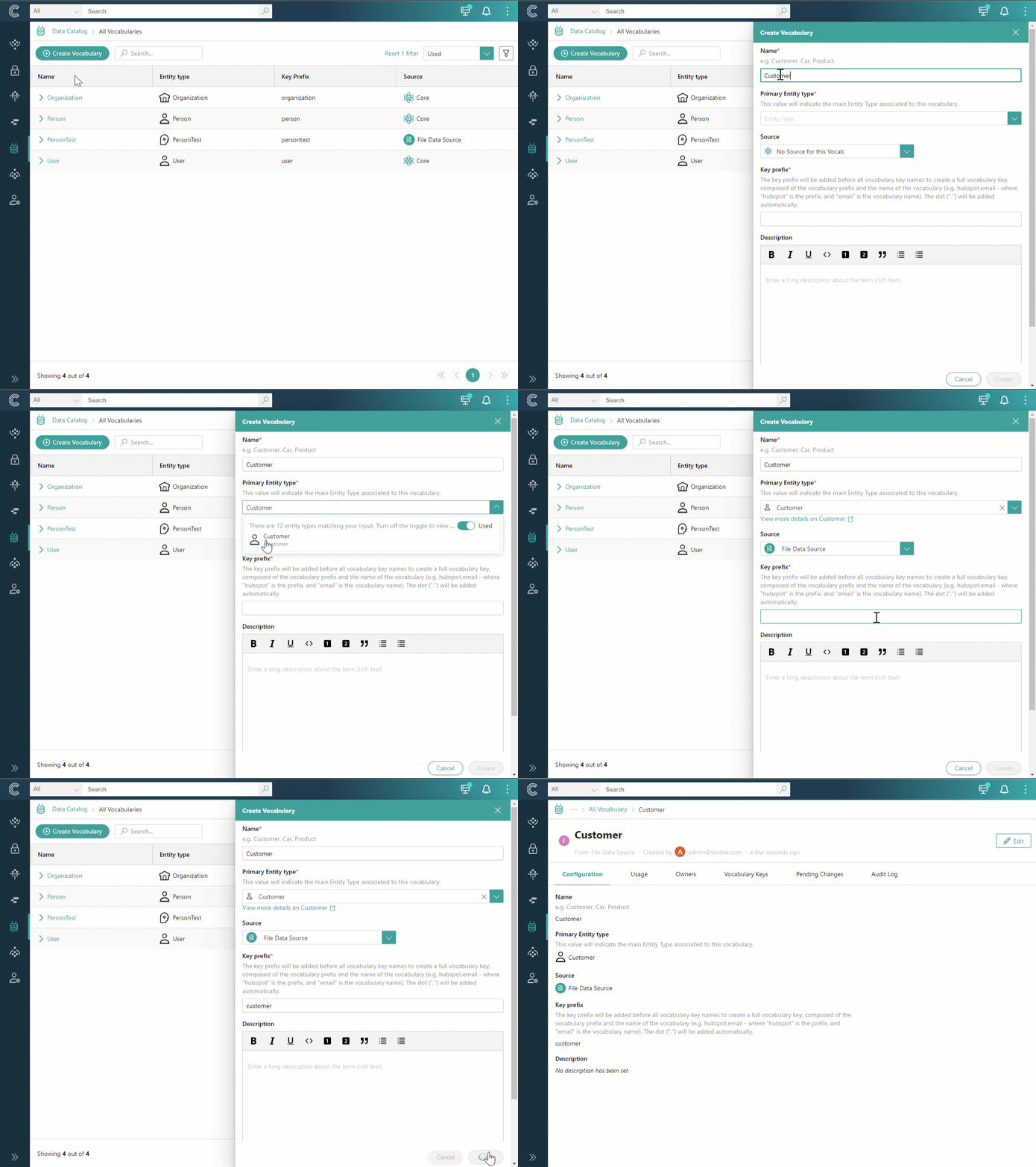
The vocabulary page opens, where you can view and manage vocabulary details.
Manage a vocabulary
Once the vocabulary is created, you can edit its configuration based on your requirements to ensure the maintenance of organized and consistent metadata.
Only Vocabulary Owners and Administrators can edit the vocabulary configuration. When you’re editing a vocabulary configuration, you can change almost all of its aspects: name, primary business domain, source, and description.
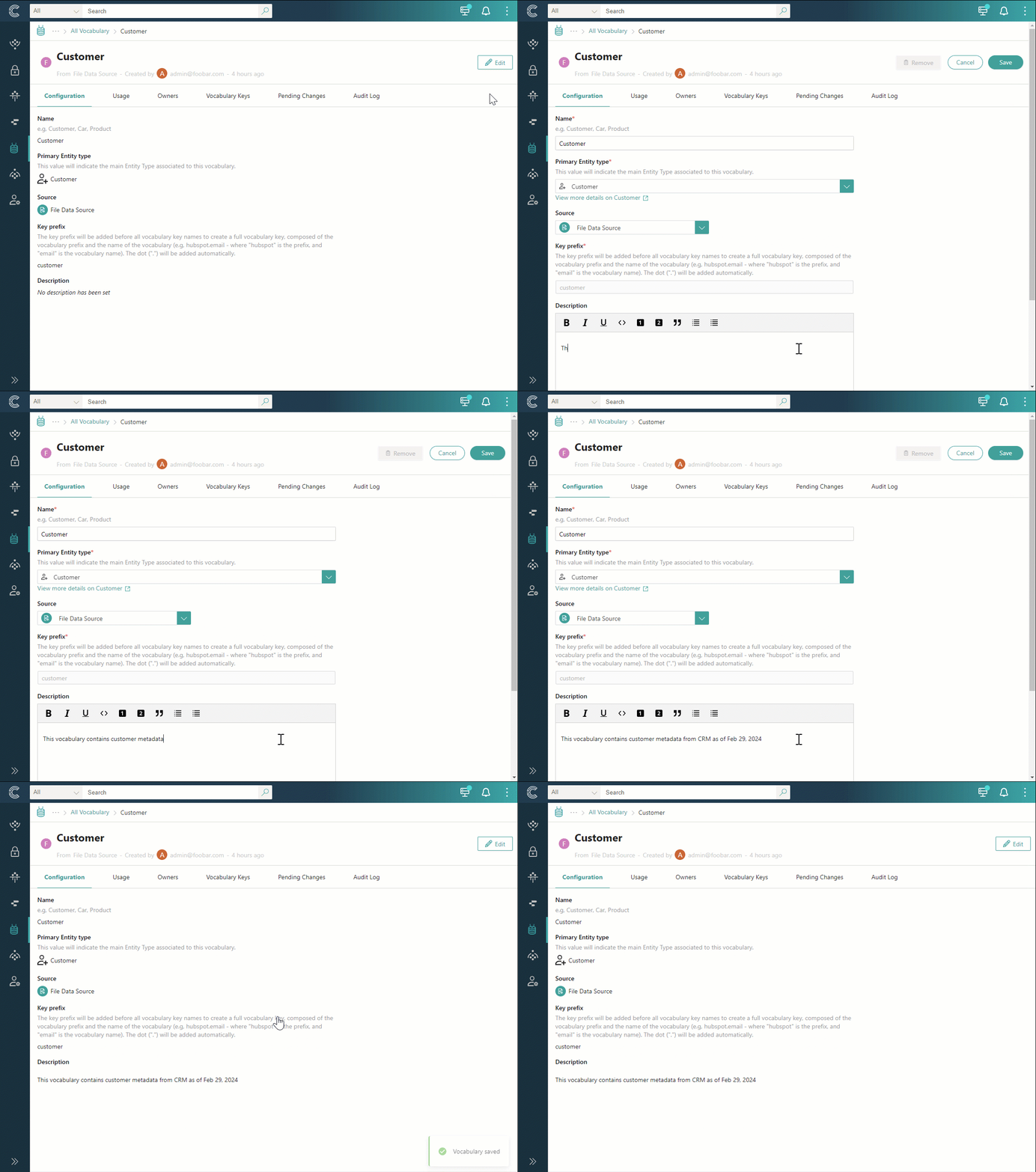
To edit vocabulary configuration
-
In the upper-right corner of the vocabulary, select Edit.
-
Make the needed changes, and then select Save and confirm your choice.
Delete vocabularies
If you no longer need one or more vocabularies, you can delete them from the list of all vocabularies. You can select a single vocabulary or several vocabularies at once, and they are deleted in one action.
If a vocabulary still has vocabulary keys, its keys are deleted together with it. A key that has no data is removed. A key that holds data is either mapped to another vocabulary key that you choose, so the data is kept under that key, or marked as obsolete.
A vocabulary that is still used elsewhere in the system (for example, in a rule or a stream) cannot be deleted. If you select a mix of vocabularies that can and cannot be deleted, the ones that can be deleted are removed and the ones that cannot are reported as failed.
To delete vocabularies
-
On the navigation pane, go to Management > Data Catalog. Then, select View All Vocabularies.
-
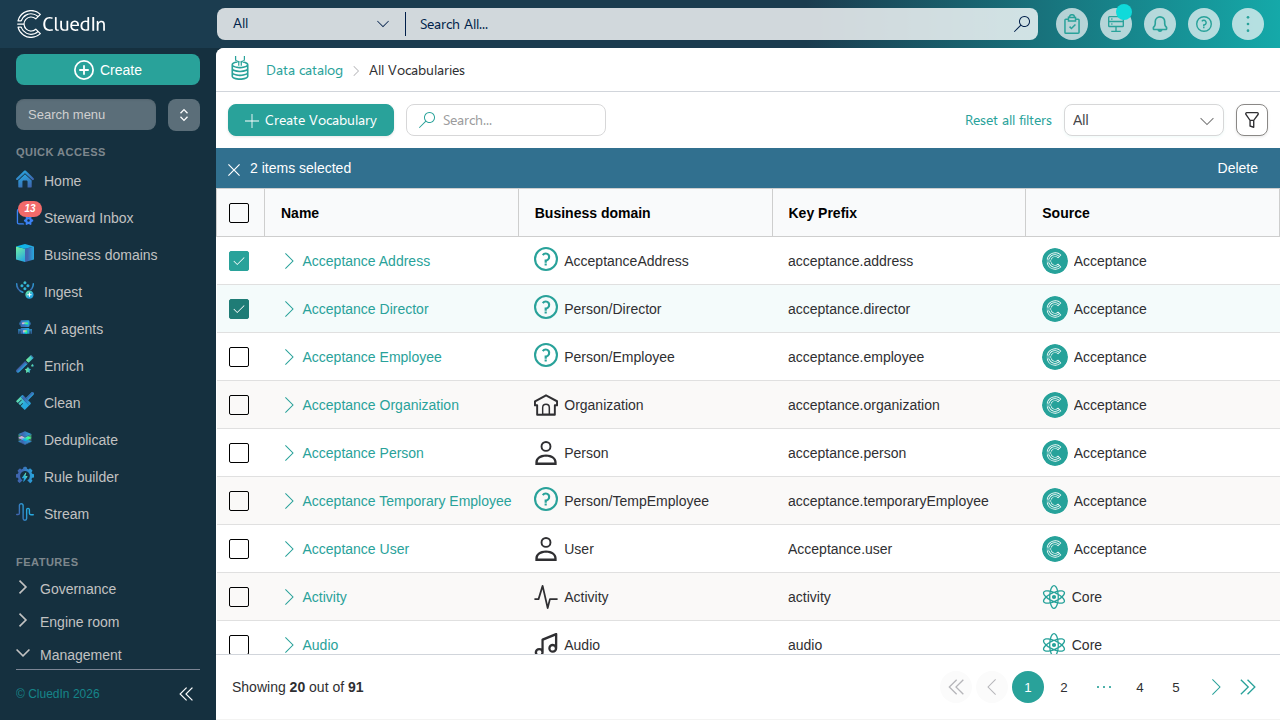
Select the checkbox next to each vocabulary that you want to delete.
-
In the toolbar, select Delete.
-
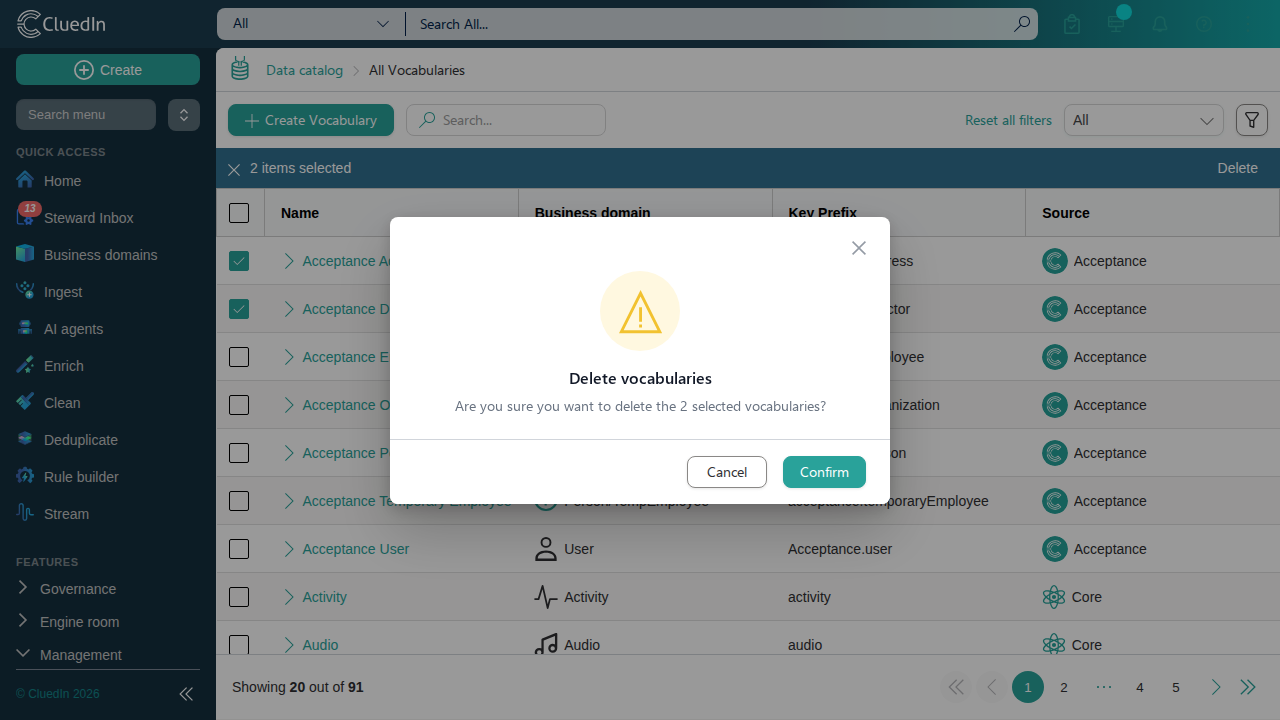
In the confirmation dialog, confirm the number of vocabularies that will be deleted, and then select Confirm.
-
If any of the selected vocabularies still have vocabulary keys, the Vocabulary keys pane opens. You make this choice once for all keys in all selected vocabularies:
-
To keep the data that these keys hold, select Yes, and then select Next. Find and select the vocabulary key that all deleted keys should be mapped to, and then select Delete.
-
To delete the keys without mapping them, select No, just delete the keys, and then select Delete.
The selected vocabularies are deleted and removed from the list. If any could not be deleted, a message lists the names of the vocabularies that failed so you can address them individually.
-